
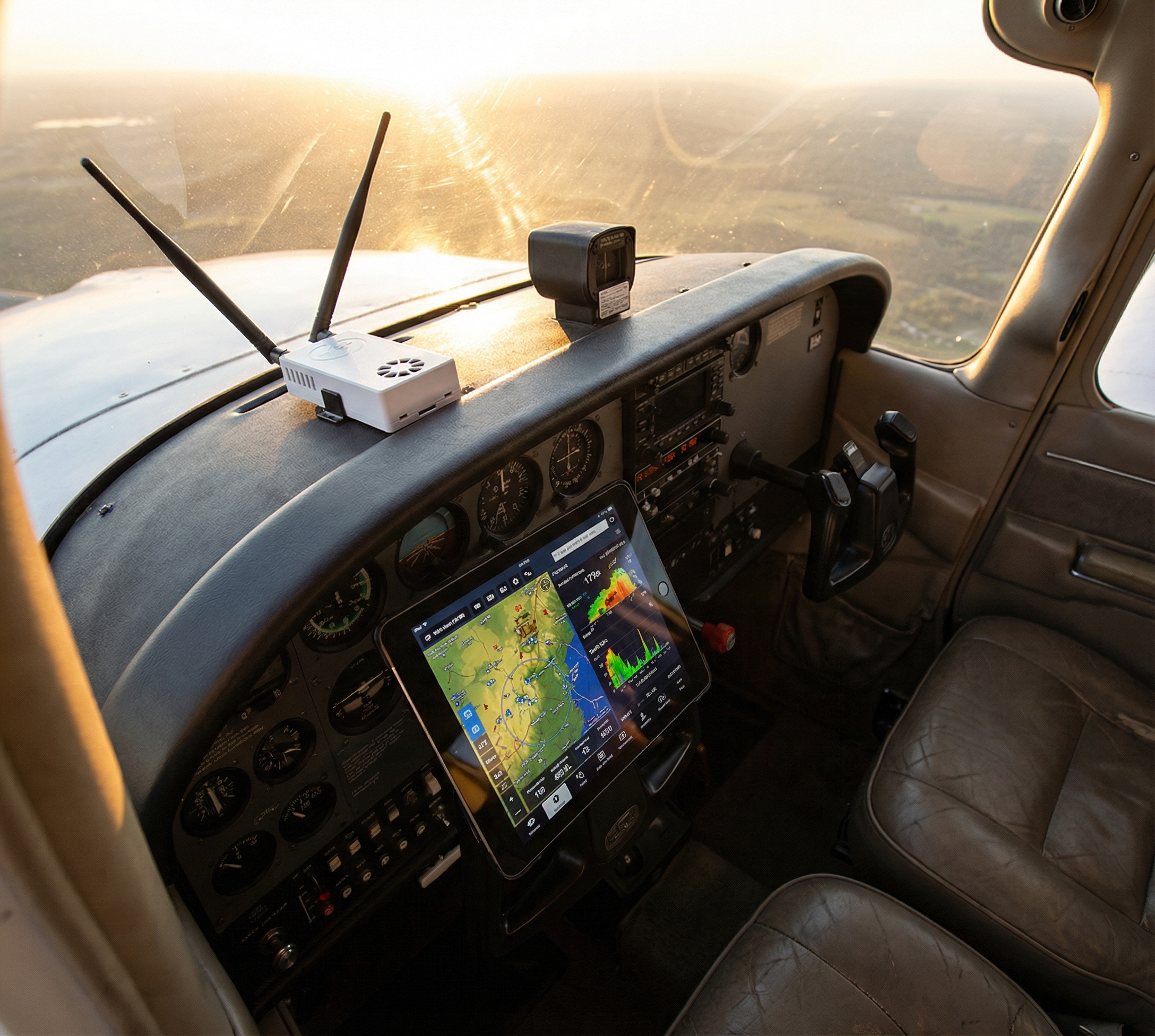
ForeFlight gets all the attention when it comes to EFB apps—and for good reason, it’s excellent. But ForeFlight isn’t the only game in town, and plenty of pilots fly happily with Avare, FlyQ, iFly GPS, WingX, or Garmin Pilot. The good news? Stratux works beautifully with all of them.
In this guide, we’ll walk through how to connect your Stratux receiver to the most popular EFB apps beyond ForeFlight. Whether you’re an Android user flying with Avare, a FlyQ devotee, or exploring alternatives, you’ll be up and running in minutes.
Why Choose a Different EFB?
Before we dive into setup, let’s acknowledge why pilots choose alternatives to ForeFlight:
- Price: ForeFlight costs $299/year for the Plus plan. Avare is free. FlyQ is $99/year. That’s significant for budget-conscious pilots.
- Platform: ForeFlight is iOS-only. If you fly with an Android tablet, you need a different solution.
- Features: Some pilots prefer the interface or specific features of other apps.
- Philosophy: Avare is open-source, appealing to pilots who value transparency and community development.
The beauty of Stratux is that it’s platform-agnostic. It speaks standard protocols (GDL 90, NMEA) that nearly every EFB app understands.
Avare (Android): Free, Open-Source, and Capable
Avare is the go-to EFB for Android pilots. It’s completely free, open-source, and surprisingly full-featured. It includes sectional charts, IFR plates, airport diagrams, weather, and—crucially—full support for Stratux.
Setting Up Stratux with Avare:
- Power on your Stratux and wait for the WiFi network to appear (usually named “stratux”)
- Connect your Android device to the Stratux WiFi network (password: “stratux” by default)
- Open Avare and tap the menu icon (three horizontal lines)
- Go to Settings → IO Options
- Enable “Connect to Stratux” or select GDL90 as the input protocol
- Avare should auto-detect the Stratux at IP address 192.168.10.1
- Verify connection: You should see GPS position, traffic targets, and weather tiles appearing on the map
Pro Tips for Avare + Stratux:
- Download chart data over WiFi at home—Stratux’s network won’t have internet access in flight
- Avare’s traffic display is simple but effective—tap a target for details
- Enable “Show METAR” overlay to see weather conditions at a glance
- Avare supports AHRS from Stratux if you have it configured
FlyQ (iOS/Android): Affordable and Powerful
FlyQ is a strong ForeFlight competitor at a fraction of the price ($99/year for the full VFR+IFR suite). It’s available on both iOS and Android, has a clean interface, and works flawlessly with Stratux.
Setting Up Stratux with FlyQ:
- Connect to the Stratux WiFi network from your device
- Open FlyQ and tap the menu
- Go to Settings → Devices & Connectivity
- Under ADS-B Devices, select “Stratux” or “Generic GDL90”
- FlyQ will scan for the device and connect automatically
- Verify: Check that GPS, traffic, and weather are all showing as “Connected” in green
FlyQ Features with Stratux:
- Full NEXRAD weather overlay
- Traffic display with altitude, heading, and distance
- Synthetic vision (if your Stratux has AHRS)
- Geo-referenced approach plates with GPS position
- Verbal traffic alerts (“Traffic, 2 o’clock, 500 feet below”)
FlyQ’s traffic alerts are particularly impressive—clear, timely, and not overly chatty. It strikes a good balance between awareness and distraction.
Garmin Pilot (iOS/Android): Premium Option
Garmin Pilot is the official Garmin EFB app. It’s pricey ($99/year just for the app, before chart subscriptions), but if you already have a Garmin panel and want seamless integration, it’s worth considering. And yes, it works with Stratux.
Setting Up Stratux with Garmin Pilot:
- Connect to Stratux WiFi
- Open Garmin Pilot
- Tap Tools → Devices
- Add a new device and select “GDL 39 / GDL 39 3D” (Stratux emulates this protocol)
- Enter the IP address: 192.168.10.1
- Garmin Pilot will connect and display traffic/weather overlays
Note: Garmin Pilot sometimes prefers Garmin-branded hardware. If you have connection issues, try selecting “Generic GDL 90” instead.
WingX (iOS): Veteran EFB with a Loyal Following
WingX has been around since the early iPad days. It’s not as flashy as ForeFlight or FlyQ, but it’s solid, stable, and well-liked by pilots who value reliability over bells and whistles.
Setting Up Stratux with WingX:
- Connect to Stratux WiFi
- Open WingX
- Go to Settings → Connected Devices
- Select “Add Device” and choose “Stratux” or “GDL 90”
- WingX should auto-discover the Stratux and connect
- Check the device status page to confirm GPS, traffic, and weather are active
iFly GPS (iOS/Android/Windows): Cross-Platform Flexibility
iFly GPS is one of the few EFB apps that runs on iOS, Android, AND Windows tablets. If you fly with a Windows Surface or similar device, iFly is your best bet. It also has dedicated hardware options, but works great with Stratux on any tablet.
Setting Up Stratux with iFly GPS:
- Connect to Stratux WiFi
- Open iFly GPS
- Tap Menu → Setup → External Devices
- Enable “WiFi Device” and select “Stratux”
- iFly will connect and display status in the top bar
- Verify traffic and weather are populating on the map
Foreflight Alternatives Summary
| EFB App | Platform | Cost | Stratux Compatibility |
|---|---|---|---|
| Avare | Android | Free | Excellent (native support) |
| FlyQ | iOS, Android | $99/yr | Excellent |
| Garmin Pilot | iOS, Android | $99/yr + charts | Good (GDL 39 mode) |
| WingX | iOS | $99/yr | Good |
| iFly GPS | iOS, Android, Windows | $69-$99/yr | Excellent |
Troubleshooting Common Connection Issues
Problem: Can’t see Stratux WiFi network
Solution: Wait 60-90 seconds after power-on for Stratux to fully boot. If still missing, try rebooting the Stratux or reflashing the SD card.
Problem: Connected to WiFi but no data in app
Solution: Check that your EFB app is set to look for external GPS/ADS-B. Verify the IP address (should be 192.168.10.1). Try forgetting the WiFi network and reconnecting.
Problem: GPS works but no traffic or weather
Solution: Make sure you’re in an area with ADS-B coverage (not in a remote valley). Check the Stratux web interface (http://192.168.10.1) to see if towers are being received. Verify both SDR radios are connected.
Problem: Frequent disconnections
Solution: Low power supply can cause WiFi instability. Use a high-quality USB power source (5V/3A minimum). Avoid long or thin USB cables. Check for overheating.
Advanced: Using Multiple Devices Simultaneously
One of Stratux’s killer features: it can serve multiple devices at once. You can have your iPad running FlyQ, your co-pilot’s Android tablet running Avare, and a phone running Garmin Pilot—all connected to the same Stratux unit simultaneously.
This is especially useful for:
- Flight instruction (instructor and student both have moving maps)
- Dual-pilot operations (both pilots have independent displays)
- Backup redundancy (if one tablet dies, the other keeps working)
The Bottom Line
Stratux’s open-source, standards-based approach means it works with virtually every EFB app on the market. You’re not locked into a single ecosystem. Whether you’re a die-hard Avare user, a FlyQ convert, or experimenting with different apps, your Stratux from Crew Dog Electronics will deliver traffic and weather reliably.
That’s the Framework Laptop philosophy in action: open standards, user choice, and freedom to use the tools that work best for you. No vendor lock-in. No artificial restrictions. Just solid ADS-B data delivered to whatever device you choose to fly with.
Fly the app you love, with the hardware that just works.