
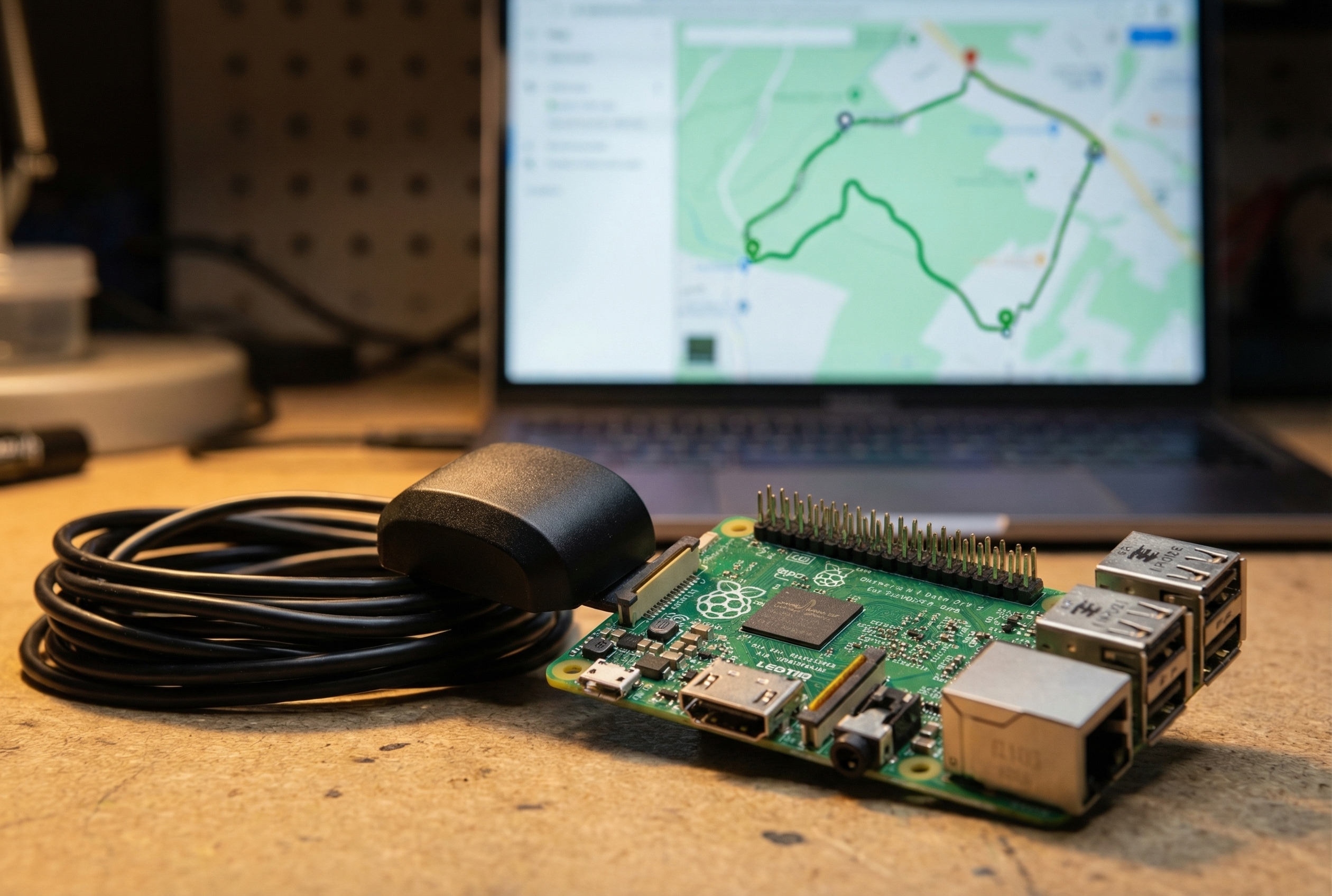
A GPS track log is one of the most useful things your Raspberry Pi isn’t doing yet.
Trip logs for road trips. Time-correlated dash cam footage. Hiking route archives. Fleet tracking on the cheap. All of it runs on a $12 u-blox USB GPS and the software already sitting in your Linux package manager.
The VK-162 is the GPS module inside every Stratux ADS-B receiver — WAAS-capable, u-blox chipset, plug-and-play on Linux with zero driver installation. In this guide, you’ll set up gpsd to receive GPS data, then write GPX track files — the format every mapping tool on earth already speaks — using a short Python script that works on every current Pi OS version.
Twelve dollars and an afternoon. Here’s how.
What You Need
- VK-162 USB GPS dongle (~$12 at Crew Dog Electronics)
- Raspberry Pi (any model with USB — Pi 3B, 4, or Zero 2W) or any Linux machine
- Pi Zero W users: you’ll need a USB OTG adapter — the VK-162 is USB-A
- SD card with Raspberry Pi OS (Bookworm or Bullseye) or any Debian/Ubuntu-based distro
- Internet connection for package install
What you don’t need: external antennas, special drivers, paid software, or a data connection after setup.
Step 1: Plug In and Confirm the Device
Plug the VK-162 into a USB port. Give it a second, then check:
ls /dev/ttyACM*You should see /dev/ttyACM0 (or /dev/ttyUSB0 on some systems). That’s your GPS talking to Linux.
Confirm u-blox chipset:
lsusb | grep -i "u-blox"Expected output: Bus 001 Device 003: ID 1546:01a8 U-Blox AG
No ttyACM0? Two common culprits: try a powered USB hub if on Pi Zero, or check whether brltty (Braille screen reader) grabbed the device — sudo systemctl disable brltty fixes it on desktop installs.
Step 2: Install gpsd
gpsd is the system daemon that reads raw NMEA sentences from your GPS and exposes clean location data to any application. Install it:
sudo apt update
sudo apt install -y gpsd gpsd-clients python3-gps
Configure it to use your device:
sudo nano /etc/default/gpsdSet these values:
DEVICES="/dev/ttyACM0"
GPSD_OPTIONS="-n"
START_DAEMON="true"
USBAUTO="true"
Restart and test:
sudo systemctl restart gpsd
cgps -s
You’ll see satellite count, lat/lon, speed, and altitude updating in real time. Wait for a fix — typically under 60 seconds outdoors, longer on first cold start.
Step 3: Log GPX Tracks
GPX (GPS Exchange Format) is the universal standard for GPS track files — XML-based, opens in Google My Maps, QGIS, Strava, Garmin BaseCamp, and every major mapping tool.
Save this script as /usr/local/bin/gpx-logger.py:
#!/usr/bin/env python3
import gpsd, datetime, time, signal, sys, os
gpsd.connect()
def save_gpx(path, points):
os.makedirs(os.path.dirname(path), exist_ok=True)
with open(path, 'w') as f:
f.write('\n')
f.write('\n')
f.write(' \n')
for lat, lon, alt, ts in points:
f.write(f' \n')
f.write(f' {alt:.1f} \n')
f.write(f' \n')
f.write(' \n')
f.write(' \n')
print(f"\nSaved {len(points)} points to {path}")
outfile = sys.argv[1] if len(sys.argv) > 1 else \
os.path.expanduser(f"~/tracks/{datetime.date.today()}.gpx")
points = []
def stop(sig, frame):
save_gpx(outfile, points)
sys.exit(0)
signal.signal(signal.SIGINT, stop)
signal.signal(signal.SIGTERM, stop)
print(f"Logging to {outfile} — Ctrl-C to stop")
while True:
p = gpsd.get_current()
if p.mode >= 2:
points.append((p.lat, p.lon,
p.alt if p.mode >= 3 else 0.0,
datetime.datetime.utcnow().strftime('%Y-%m-%dT%H:%M:%SZ')))
time.sleep(1)Run it:
mkdir -p ~/tracks
python3 /usr/local/bin/gpx-logger.py ~/tracks/$(date +%Y-%m-%d).gpx
Auto-start on boot (systemd):
Create a wrapper at /usr/local/bin/gps-logger.sh:
#!/bin/bash
mkdir -p "$HOME/tracks"
exec python3 /usr/local/bin/gpx-logger.py "$HOME/tracks/$(date +%Y-%m-%d).gpx"
sudo chmod +x /usr/local/bin/gps-logger.shCreate /etc/systemd/system/gps-logger.service:
[Unit]
Description=GPS Track Logger
After=gpsd.service

[Service]
ExecStart=/usr/local/bin/gps-logger.sh
Restart=on-failure

[Install]
WantedBy=multi-user.target
sudo systemctl daemon-reload
sudo systemctl enable --now gps-loggerYour Pi now logs every session to a dated GPX file automatically.
Step 4: Correlate with Dash Cam Footage
If you’re recording video on a Pi, GPS logs let you match approximate location to any timestamp in the footage — useful for insurance documentation, road trip archives, or just knowing where you were.
The key: make sure your system clock is GPS-disciplined first. The S05 guide (gpsd + chrony) covers that setup. Once your clock is accurate, your video file timestamps and your GPX track timestamps will align.
Open both in Dashware (free, Windows) or DashCam Viewer (Mac/Win) to overlay GPS data on footage. These tools match files by timestamp — no extra metadata needed.
Step 5: View Your Tracks
Copy GPX files off your Pi:
scp [email protected]:~/tracks/$(date +%Y-%m-%d).gpx ~/Desktop/- gpx.studio — browser-based, elevation profiles, shareable links
- Google My Maps — import GPX, share with anyone
- QGIS — open source GIS for serious analysis
- Garmin BaseCamp — syncs to watches and handheld GPS units
What Else Can the VK-162 Do?
Once you have it, the VK-162 has a habit of becoming indispensable:
- APRS tracking with Direwolf — full ham radio station, no TNC required → guide
- Stratum 1 NTP server — GPS-disciplined time source for your homelab → guide
- Clock source for chrony — accurate time sync without PPS → guide
- Aviation ADS-B — the same module lives inside every Stratux receiver
Wrap Up
The VK-162 is one of those components that quietly becomes load-bearing in a Pi project. You plug it in thinking “I just need GPS coordinates,” and six weeks later it’s keeping your NTP server accurate, logging every drive, and anchoring timestamps on your dash cam footage.
Twelve dollars. Plug-and-play on Linux. Works with everything gpsd supports.